A Clean Slate
Sometimes, existing pages may not be the best place to add new content. Adding a new page to your site gives you a clean slate to share your content.
How to Add a New Page
To add a new page to your site, open your Dashboard and find your way to the Page List by clicking on “Pages” in the left-hand sidebar. Once there, look near the top of the dashboard to find the “Add Page” button. It should be next to the “Pages” heading.
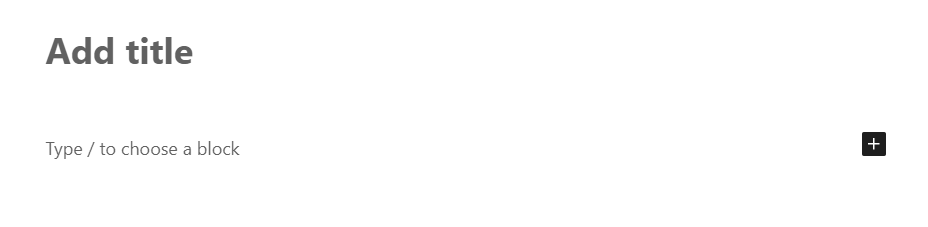
When the editing interface opens, you will need to enter the page title at the top of the editor and make sure to add the Hero Block as the first block on the page. The Hero Block must be used on all pages in the new design.
When you are done editing, you can choose one of two options for saving your page:
- Save Draft allows you to save all of your changes to the page without making the page live for users to see.
- Publish will save all changes and make the page live for users to see.
Make sure you select the best option for how you want to save your page.